Microsoft 365 Outage See what to expect in Emailgistics  

AI Features Are Here! Discover why teams choose Emailgistics AI  

SLA Tracking & Performance Analytics

How to see who's overloaded on your team (and who has capacity)

To see who's overloaded in a shared inbox, track three numbers per person: open emails they own, how old the oldest one is, and how fast they're replying. Outlook can't show any of these for a shared mailbox, so teams either count by hand or use a tool that assigns every email an owner and reports by user.

Emailgistics Customer Success Team 3 minute read Last updated

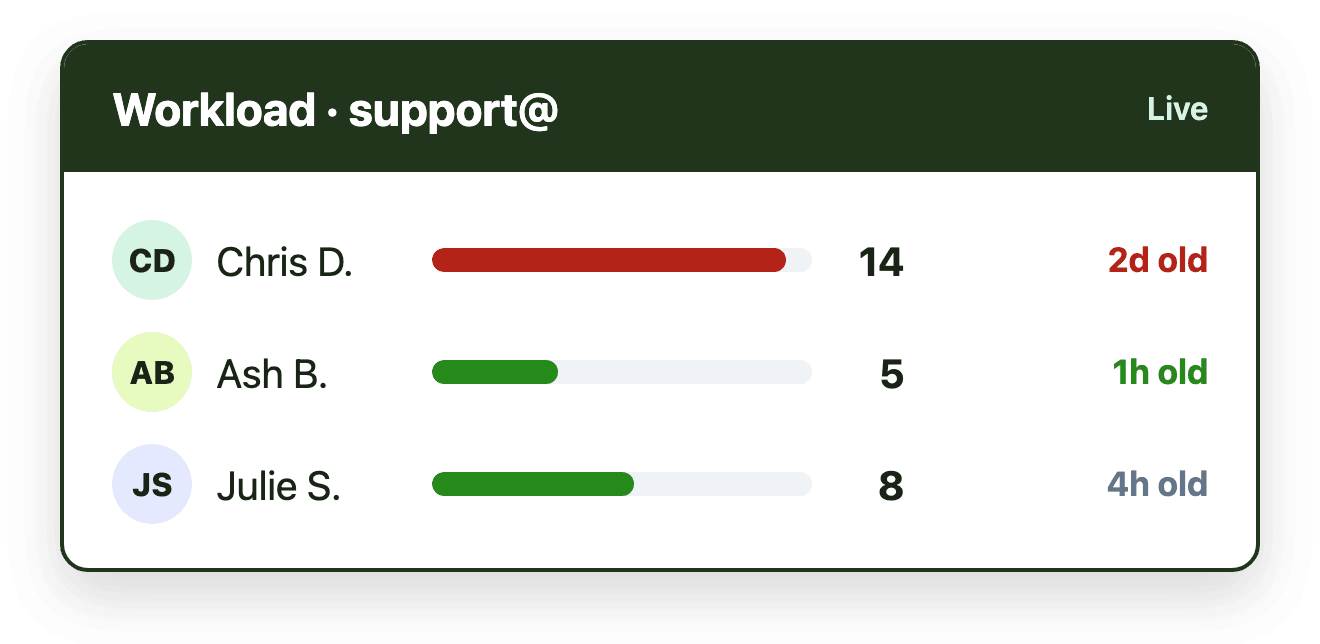
A workload view showing open emails, oldest email and reply time for three team members

Key takeaways

  • Workload is visible only when every email has one owner; without ownership, there is nothing to count per person.
  • The three signals of overload are open emails per person, the age of their oldest open email and a rising reply time.
  • Outlook shows a shared mailbox's unread count, not who is holding what or how long it has waited.
  • Fix overload at the point of assignment with load balancing, per-person limits and availability, not by reshuffling later.
  • Emailgistics shows open emails, aging and reply time by person in a real-time dashboard inside Outlook, and caps how many emails each person holds.
On this page

To see who's overloaded on a shared inbox team, look at three numbers for each person: how many open emails they own, how long their oldest open email has been waiting, and whether their reply time is rising. Together they show who is drowning and who has room. The catch is that Outlook can't show any of them for a shared mailbox, because it has no idea who owns what.

Why workload is invisible in a shared mailbox

In a shared mailbox, every email belongs to everyone, so it belongs to no one. People claim email by moving it to a folder, flagging it or replying in a team chat. A manager trying to judge workload has to scroll folders, ask around or wait for a customer to complain.

That's why the first step isn't a report. It's ownership. Once every email is assigned to one person the moment it arrives, workload becomes something you can count. Here's why ownership matters so much in a shared mailbox.

The three signals of overload

1. Open emails per person. The simplest measure: how many unresolved emails each person currently owns. Compare each person to the team average and to their own normal level.

2. Age of their oldest open email. A person can have a normal count but one email that has sat for two days. Aging is the early warning that someone is choosing what to skip.

3. Reply time trend. When someone's average reply time rises week over week while volume is steady, they're stretched, even if their open count looks fine.

One number alone can mislead. A high count with fast replies may just be a busy, effective person. A low count with a very old email may be someone avoiding a hard case. Look at all three together.

Spotting who has capacity

Capacity is the mirror image: a below-average open count, no aging email and steady reply times. Those are the people who can take the overflow, cover a colleague who is out or pick up a new type of request.

How to fix overload at the source

Once you can see workload, stop it building up in the first place:

  • Load balancing. Give each new email to the person with the fewest open emails instead of strict rotation. How load balancing works.
  • A per-person limit. Cap how many open emails anyone can hold, so new email goes to someone else when they're full.
  • Availability. Mark people unavailable when they're out, so nothing is assigned to an empty desk.
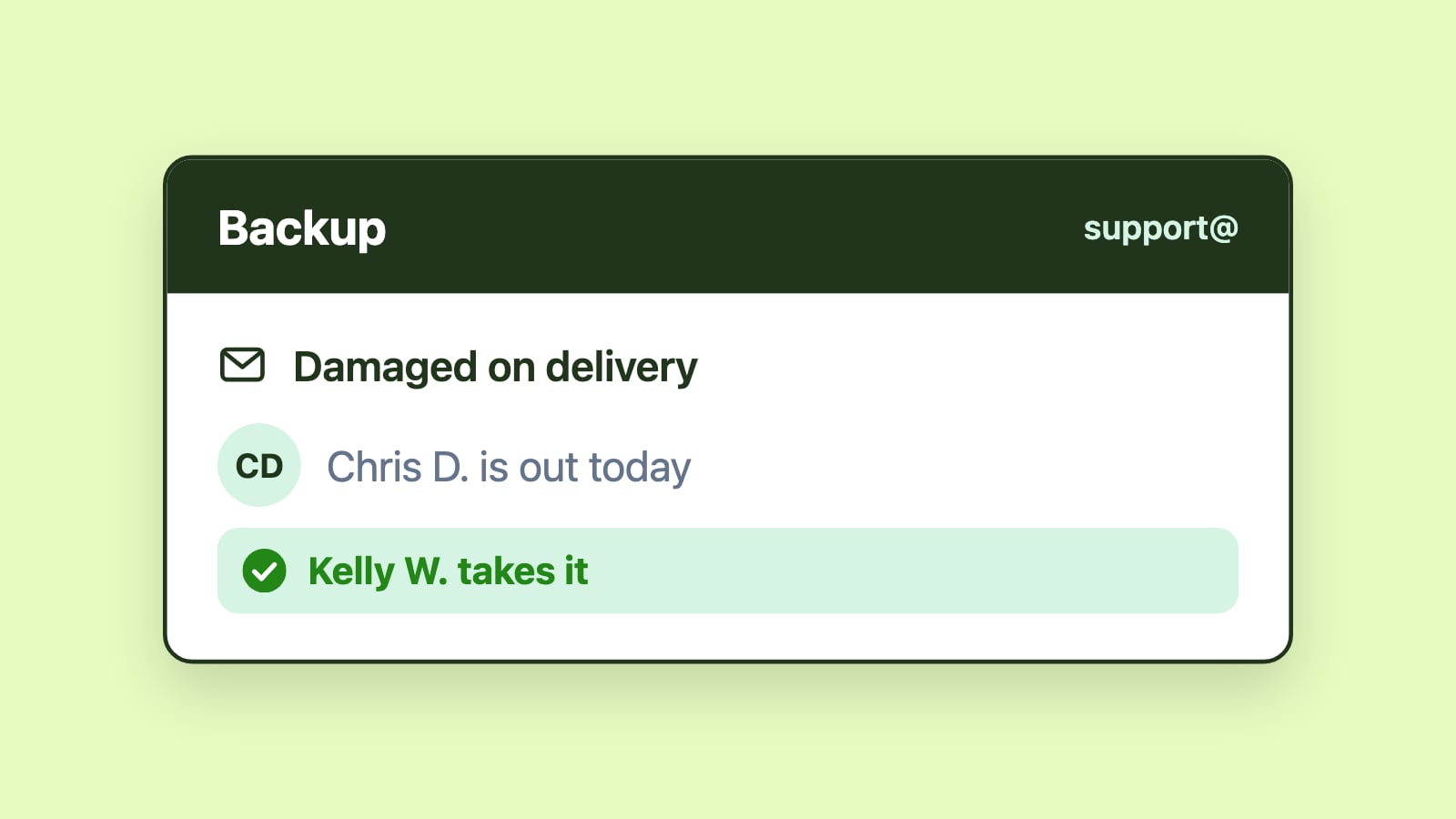
  • Backup assignees. Send email to a named backup when the usual owner is away.
  • Tag-based routing. If one person is overloaded with one type of request, route part of it to someone else.

How to see workload in Outlook with Emailgistics

Emailgistics assigns every new email in your Microsoft 365 shared mailboxes to one owner, inside Outlook. Managers then get:

  • A real-time dashboard of open emails, unassigned email and response times that updates as email is processed.
  • An Open Message Detail report with the age, owner and status of every open email.
  • A User Reply Time Performance report to compare reply speed across the team.
  • Max Messages to cap how many emails each person holds, and one-click availability so email skips people who are out.

That turns "who's overloaded?" from a guess into a glance. See reporting and analytics or the metrics worth tracking in shared mailbox analytics.

Emailgistics features in this post

Written by

Emailgistics Customer Success Team

The team that onboards and supports Emailgistics customers. They write about shared inbox best practices, SLAs and running a team inbox in Outlook.

About Emailgistics

Emailgistics is the Outlook-native shared inbox for Microsoft 365. It gives every shared mailbox email one owner, automates routine work, tracks response times against your SLAs and reports on team performance, without leaving Outlook. Most teams are live in under an hour.

Get a Demo

Then try it free for 14 days. No credit card required.

Track open emails per person, the age of each person's oldest open email and each person's average reply time. Someone with more open emails than the rest, an old email at the bottom of their pile and a slowing reply time is overloaded. In a shared mailbox, this only works if every email is assigned to one owner, which Outlook can't do on its own.

No. Outlook shows a shared mailbox's unread count and lets people use folders or categories, but it has no owner field, so it can't count open emails per person, show how long they've waited or report reply times by user.

Balance at the point of assignment. Load balancing gives each new email to the person with the fewest open emails, a per-person limit stops anyone getting more than they can handle, and marking people unavailable keeps email away from anyone who is out. Reshuffling after the fact is slower and easy to forget.

It depends on the work, but the trend matters more than the number. Compare each person to the team average and to their own normal level. A person who is steadily above both, with their oldest email getting older, needs help, a lower limit or fewer email types routed to them.

Share this article

More from the blog

See all posts
  • SLA Tracking & Performance Analytics

    How to use SLA tracking and SLA data in shared mailboxes

    SLA tracking in a Microsoft 365 shared mailbox measures how long emails wait for a reply against set targets, such as first-response time. Teams use that data to work on the oldest messages first, act when a target is missed and fix recurring delays.

    8 minute read May 10, 2026

  • SLA Tracking & Performance Analytics

    Crafting an effective SLA and reply time benchmark

    Effective SLA benchmarks are grounded in operational reality, not aspirational targets. By combining historical data, customer expectations, and workflow visibility, Microsoft 365 teams can craft reply time standards that are realistic, measurable, and sustainable.

    5 minute read May 9, 2026

  • SLA Tracking & Performance Analytics

    Why shared mailbox SLAs break and how to prevent breaches

    Shared mailbox SLAs break gradually, through delayed ownership, widening response variance and hidden backlog. Prevent breaches with clear ownership on arrival, visible wait times, balanced workloads and alerts when an email waits too long.

    9 minute read May 9, 2026