


Microsoft 365 Integration for IT
Shared mailbox workflows with no migration
Emailgistics connects to the shared mailboxes you already have in Exchange Online. Nothing moves, agents keep working in Outlook, and your Microsoft 365 admin stays in control of access.
Get a Demo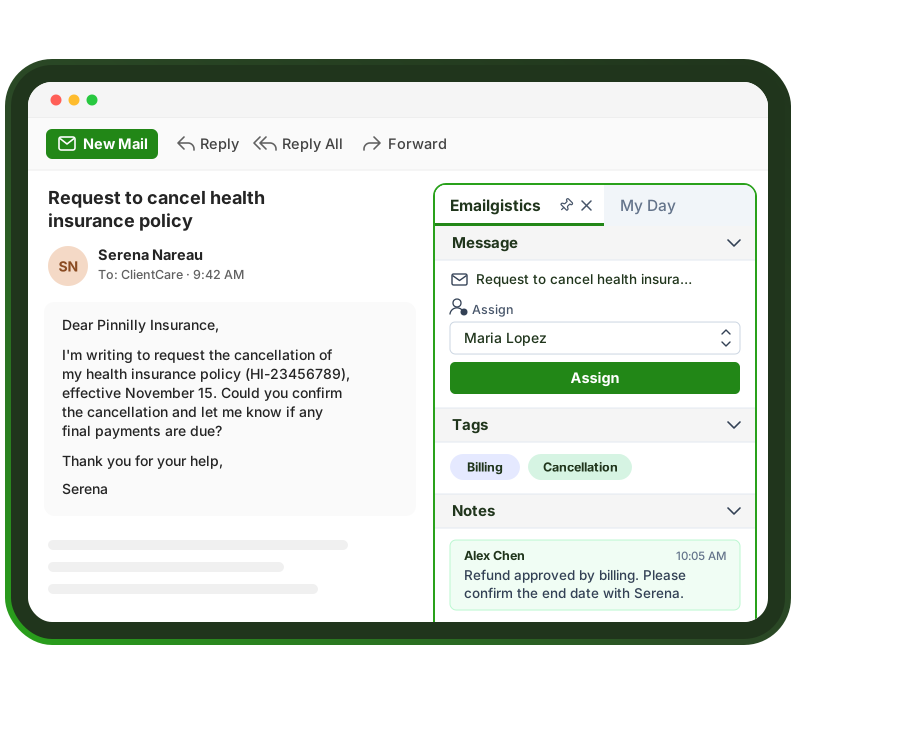
Do you need to migrate off Outlook shared mailboxes? No.
Emailgistics works on top of your existing Microsoft 365 shared mailboxes, so email stays in Exchange Online and your team keeps working in Outlook. Setup is a short checklist and one guided onboarding session with your Microsoft 365 admin.
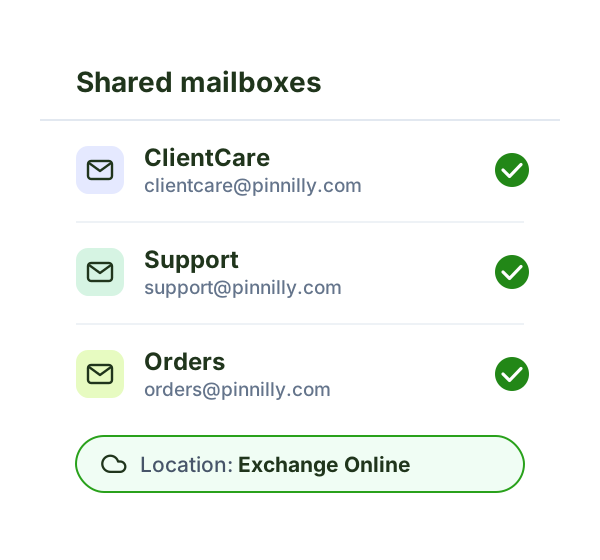
Shared mailboxes stay in Exchange Online
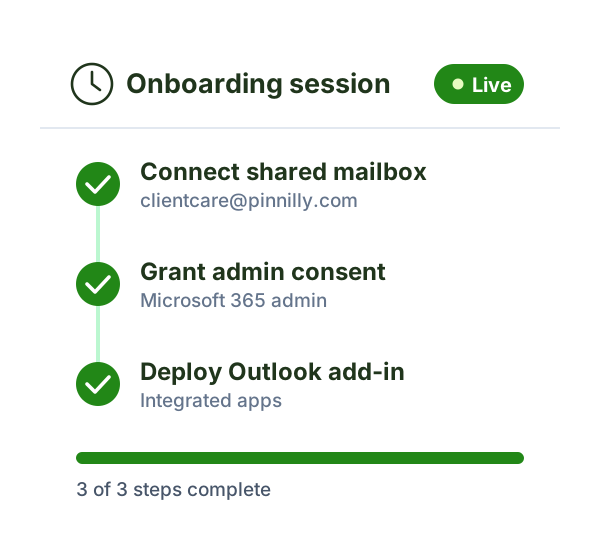
Live after one session with your Microsoft 365 admin
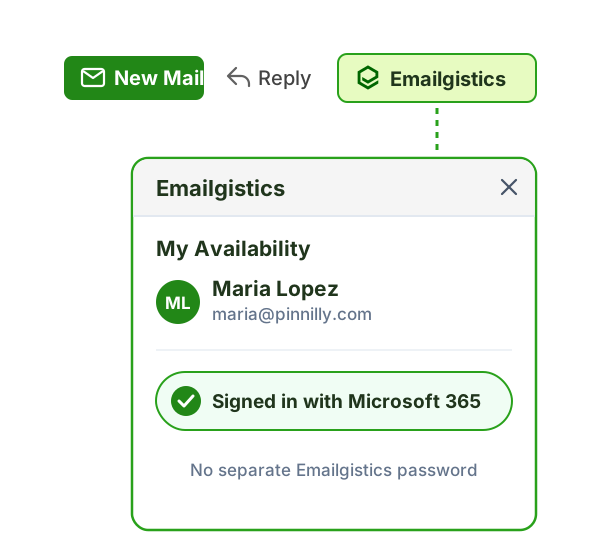
Agents keep working in Outlook with the add-in
What gets installed, and what doesn't
Emailgistics connects in two ways, and neither one touches your mail flow:
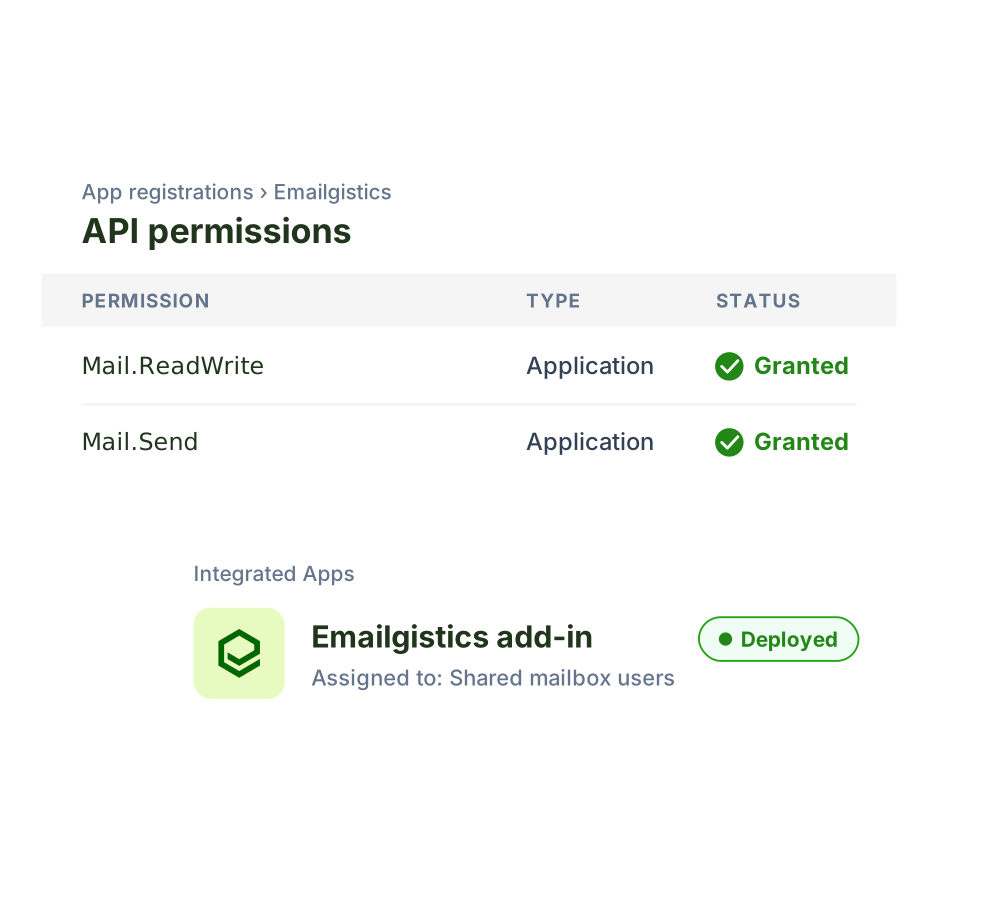
- A Microsoft Graph connection you control. Your admin creates an app registration in your own Microsoft Entra ID tenant and grants the application a few permissions, such as
Mail.ReadWriteandMail.Send. Mail and mailbox settings access is scoped to only the shared mailboxes you choose. Your organization holds the credential and can revoke it at any time. - The Emailgistics Outlook add-in, deployed centrally from Integrated Apps in the Microsoft 365 admin center. Users sign in with their existing Microsoft 365 account.
There are no servers to install, no changes to MX, SPF or DKIM records, and nothing to install on agents' computers.
Where your data lives
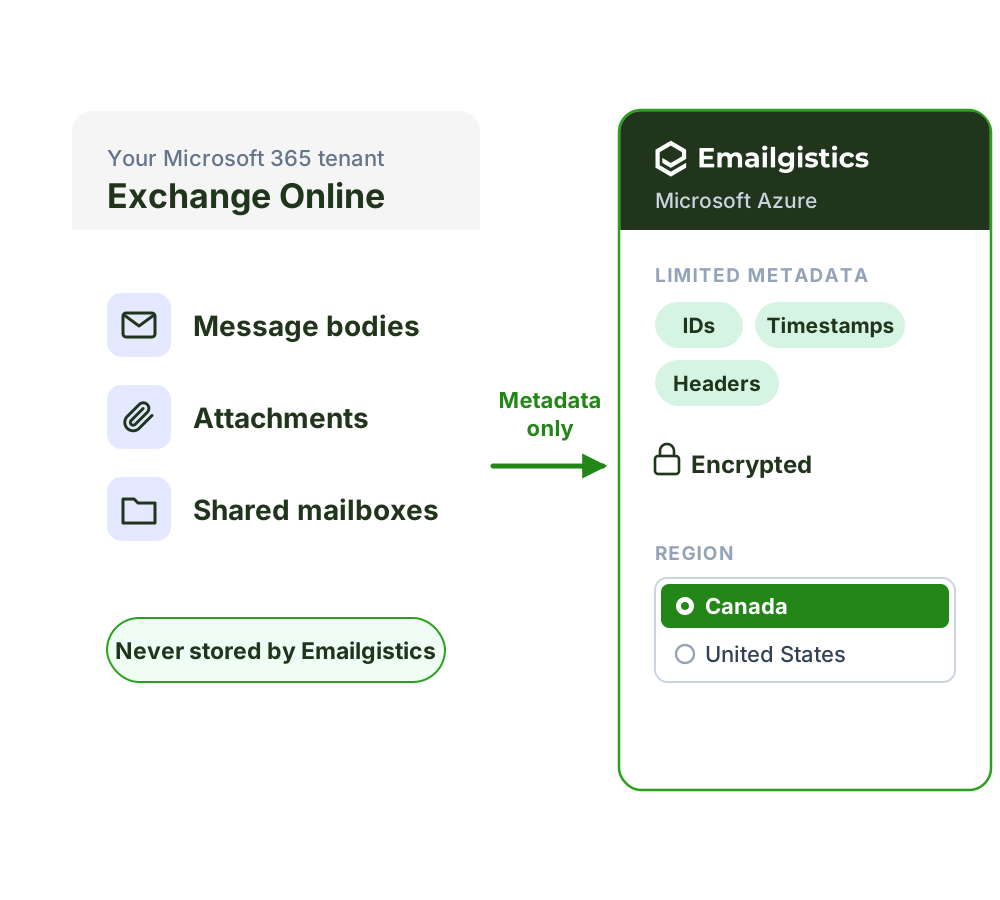
Emailgistics never needs a copy of your mailbox to do its job:
- Message bodies and attachments stay in Exchange Online and are never stored by Emailgistics.
- To power assignment, SLA tracking and reporting, Emailgistics stores limited metadata.
- Metadata is encrypted and hosted in Microsoft Azure data centers in Canada or the United States. You choose the region.
The full list of metadata fields is available on our security page. Optional AI features process message content only when you turn them on. See AI security for details.
Stop anytime, and your email stays put
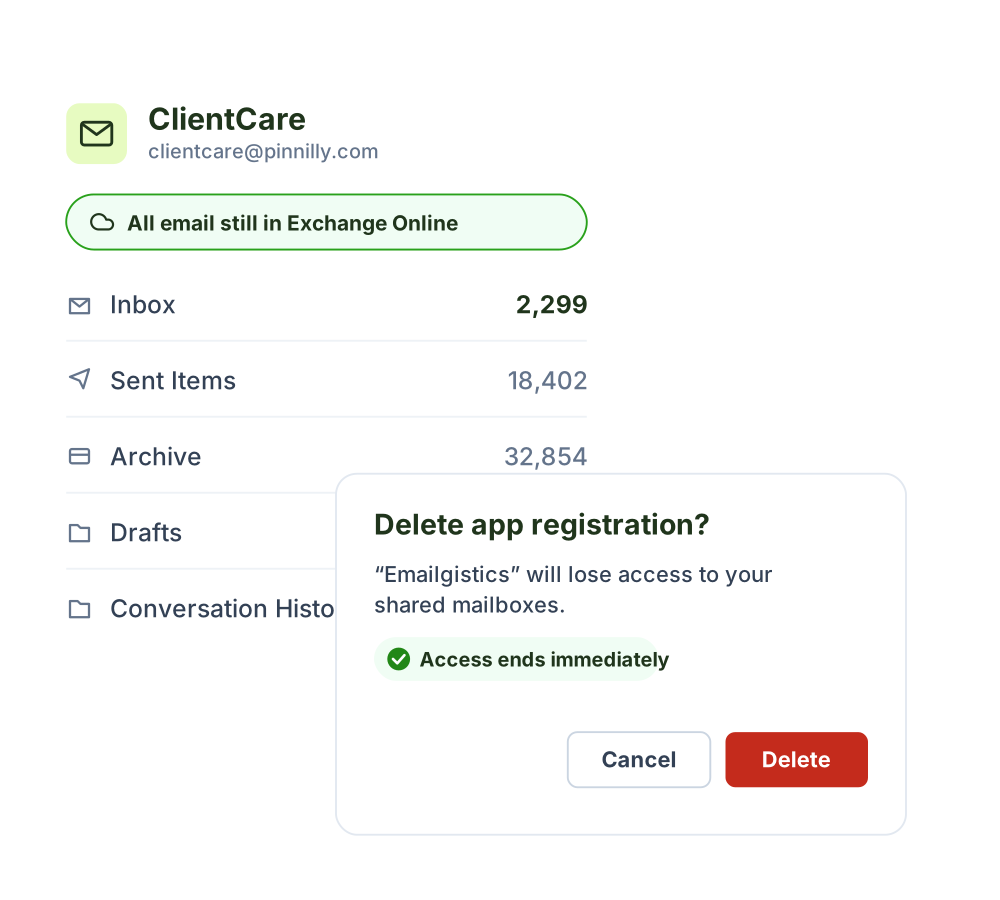
Because nothing was migrated, there is nothing to migrate back. All email remains in Exchange Online. To remove Emailgistics:
- Export any reports you want to keep, then offboard your mailboxes in the Emailgistics admin portal. Message details and conversation history are deleted. Aggregated reporting data, which contains no message content, is retained.
- Delete the client secret or the app registration in Microsoft Entra ID. Access ends immediately.
- Remove the add-in from Integrated Apps.
- Remove the folders Emailgistics created in the mailbox, such as team folders and the Snoozed folder.
“The setup and maintenance of Emailgistics is by far the easiest we’ve dealt with.”

Riley H., IT Supervisor at pc/nametag, set up the mailbox and all users in under 30 minutes
 Rated 4.7/5 on G2
Built to fit how IT already runs Microsoft 365
Emailgistics uses standard Microsoft 365 controls, so access, deployment and compliance stay governed the way the rest of your tenant is.

Scoped mailbox access
Emailgistics can only work with the shared mailboxes you onboard. It has no access to personal mailboxes or any other mail in your tenant.

Visible and revocable in Entra ID
Emailgistics appears as an enterprise application in Microsoft Entra ID, where you can see the permissions granted and revoke access at any time.

Central add-in deployment
Deploy the add-in to a security group from Integrated apps. New members of the group get it automatically, with nothing for agents to install.

Hybrid Exchange supported
Hybrid environments are supported as long as your users and shared mailboxes are synchronized with Microsoft 365 Exchange Online before onboarding.

Credentials you control
Your organization creates the app registration and its client secret, and sets the expiry, up to two years. Emailgistics reminds your admins 30 days before it expires.

SOC 2 Type II, HIPAA and GDPR
Emailgistics is SOC 2 Type II certified and HIPAA and GDPR compliant. You can also buy it through Microsoft AppSource or Azure Marketplace if you prefer.
Migrating to a standalone platform vs. adding Emailgistics
Standalone help desks and shared inbox tools mean moving mailboxes or forwarding mail, new logins, retraining and a second system to maintain. Emailgistics works inside the Microsoft 365 setup you already run.
| Feature |  Works entirely in M365 | Help desks and shared inbox tools |
|---|---|---|
| Shared mailboxes stay in Exchange Online | Mailboxes moved or mail forwarded | |
| Works entirely in Microsoft 365 | Must learn new platform | |
| Messages stay on the M365 server | Security risks from forwarding | |
| No SMTP setup for distribution groups | Must configure each step | |
| No DNS record changes (SPF/DKIM) | Required for deliverability | |
| Mail flow never depends on Emailgistics | Mail routed through another system | |
| No new logins for agents | Separate accounts to manage | |
| Minimal user learning curve | New UI, new workflows | |
| One system to maintain | Two systems to keep in sync |
How a typical rollout works
Most teams start with one shared mailbox, then add more. Our onboarding team provides free technical help and works through each step with your admin, so setup is quick and seamless.
1. Prepare
Confirm the shared mailbox is ready for onboarding:
- Exchange Online, or hybrid with users and mailboxes synchronized
- A shared mailbox, not a distribution list or user mailbox
- Licensed users with Full Access and Send As permissions
- Fewer than 1,000 emails in the Inbox
2. Connect
Your Microsoft 365 admin connects the mailbox in one guided onboarding session with our team:
- Create an app registration in Microsoft Entra ID
- Grant the Microsoft Graph permissions
- Scope access to the shared mailboxes you choose
3. Deploy the add-in
Deploy the Outlook add-in from the Microsoft 365 admin center:
- Upload the add-in in Integrated apps
- Assign it to a security group of mailbox users
- Include the shared mailbox for Outlook on the web and the new Outlook
4. Pilot and roll out
Start with one shared mailbox, then expand:
- Set up assignment, rules and SLA targets
- Let the team work in it and adjust as needed
- Onboard more shared mailboxes the same way
No. Emailgistics connects to your existing Microsoft 365 shared mailboxes. Email stays in Exchange Online, the mailbox addresses stay the same, and your team keeps working in Outlook.
Your admin creates an app registration in your own Microsoft Entra ID tenant and grants a few Microsoft Graph application permissions, such as Mail.ReadWrite and Mail.Send. Mail and mailbox settings access is scoped to only the shared mailboxes you choose, and your organization can revoke it at any time.
Message bodies and attachments stay in Exchange Online and are never stored by Emailgistics. Emailgistics stores limited metadata to power assignment, SLA tracking and reporting, encrypted and hosted in Microsoft Azure data centers in Canada or the United States. You choose the region.
Your Microsoft 365 admin completes a short pre-work checklist, then connects the first mailbox in one guided onboarding session with the Emailgistics team. Technical onboarding help is free, and the Outlook add-in is deployed centrally through Integrated Apps.
Yes, at no extra cost. Our onboarding team works with your admin step by step, from the pre-work checklist to connecting each shared mailbox and deploying the add-in, so the process is quick and seamless.
Very little. Agents keep working in the same shared mailbox in Outlook. Emails assigned to them appear in their own folder inside the shared mailbox, and the Emailgistics add-in pane shows ownership, notes and conversation history.
All email stays in Exchange Online. You offboard your mailboxes in the Emailgistics admin portal, delete the client secret or app registration in Microsoft Entra ID, remove the add-in from Integrated Apps and remove the folders Emailgistics created. Message details and conversation history are deleted; aggregated reporting data with no message content is retained.
Yes. Emailgistics only works with the shared mailboxes you onboard. Access is scoped to mailboxes in a security group you control.
Last updated Reviewed by Mark Wickens, Chief Technology Officer

Add structure to your shared mailboxes without a migration project
Book a demo to walk through deployment with our team, then try Emailgistics free for 14 days. No credit card required.