Microsoft 365 Outage See what to expect in Emailgistics  

AI Features Are Here! Discover why teams choose Emailgistics AI  

Microsoft 365 Email Workflows

How hard is it to roll out a shared inbox tool? Training, adoption and setup time

Rollout effort depends on how much changes for the team. A help desk or standalone shared inbox app means a new interface, mailbox connections and retraining, often over weeks. An Outlook add-in keeps the team in the same shared mailboxes, so setup is an admin task and most teams are live in under an hour.

Emailgistics Customer Success Team 4 minute read Last updated

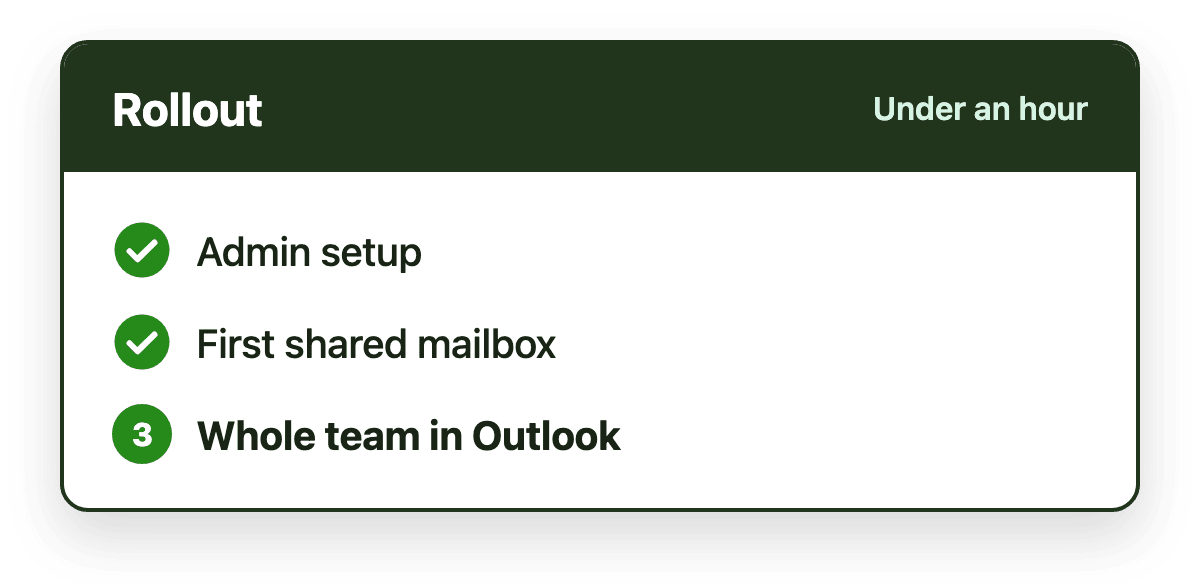
Rollout steps for an Outlook-native shared inbox: admin setup, first mailbox, then the whole team

Key takeaways

  • The biggest rollout cost isn't setup, it's how much daily work changes for the people answering email.
  • Help desks and standalone apps mean a new interface, new habits and retraining, which is where adoption usually stalls.
  • Outlook add-ins keep the same mailboxes, addresses and inbox, so training covers only what's new: ownership, notes and alerts.
  • Plan rollout in three steps: admin setup, one pilot mailbox, then the rest of the team.
  • Emailgistics is set up through a Microsoft Entra ID app registration and Integrated Apps, with free guided onboarding; most teams are live in under an hour.
On this page

How hard it is to roll out a shared inbox tool depends mostly on one thing: how much changes for the people who answer the email. A help desk or a standalone shared inbox app asks the whole team to move into a new interface, which means mailbox connections, rebuilt workflows and retraining, often over several weeks. An Outlook add-in leaves the team in the same shared mailboxes, so rollout is mainly an admin task. With Emailgistics, most teams are live in under an hour.

Where rollout effort actually goes

Setup screens are rarely the hard part. The effort sits in three places:

Technical setup. Connecting mailboxes, granting permissions and configuring rules. Usually a job for IT and the team lead.

Retraining. Teaching every person a new way to read, claim and reply to email. The more the interface differs from Outlook, the longer this takes and the bigger the productivity dip.

Adoption. Getting everyone to actually use the new way. This is where most rollouts stall: a few people keep answering from Outlook, the new tool falls out of date, and the team ends up with two half-used systems.

Rollout by type of tool

Help deskStandalone shared inbox appOutlook add-in
Where the team worksThe help desk's interfaceThe app's interfaceOutlook
Mailbox changesEmail forwarded or connected to the help deskMailboxes synced into the appNone
TrainingNew ticket workflow for everyoneNew inbox for everyoneOnly the new features
Main adoption riskAgents resist ticketing for simple emailSome people stay in OutlookLow, the inbox doesn't change

A help desk is worth that change when you need portals, chat or phone support. For teams whose work is email, the change often costs more than the problem it solves. Read how shared mailboxes and help desks differ.

A three-step rollout plan

Whatever you choose, roll out in stages:

  1. Admin setup. IT connects the tool to Microsoft 365, grants only the permissions needed and limits access to the mailboxes in scope.
  2. One pilot mailbox. Start with a single busy mailbox and a few rules: who gets what, a response-time target and an alert. Run it for a week and adjust.
  3. The rest of the team. Add the remaining mailboxes and people, using the pilot team to answer questions.

Set expectations early: tell the team what changes, what stays the same and what a manager will now be able to see. Workload and reply-time reporting goes over better when people know it's there to balance work, not to police it.

How rollout works with Emailgistics

Emailgistics is an Outlook add-in, so the team keeps the same mailboxes, the same addresses and the same inbox. Rollout looks like this:

  • Pre-work checklist. Your Microsoft 365 admin creates an app registration in your own Microsoft Entra ID tenant, with Microsoft Graph permissions scoped to the shared mailboxes you choose. Access can be revoked at any time.
  • Central deployment. The Outlook add-in is deployed to the team through Integrated Apps, so nobody installs anything themselves.
  • Guided onboarding. The Emailgistics team connects the first mailbox with your admin in one session, at no extra cost. Most teams are live in under an hour.
  • Minimal training. Agents keep working in Outlook. Emails assigned to them appear in their own folder inside the shared mailbox, and the add-in pane shows ownership, notes and conversation history.

See how the Microsoft 365 integration works or download the onboarding pre-flight checklist.

Emailgistics features in this post

Written by

Emailgistics Customer Success Team

The team that onboards and supports Emailgistics customers. They write about shared inbox best practices, SLAs and running a team inbox in Outlook.

About Emailgistics

Emailgistics is the Outlook-native shared inbox for Microsoft 365. It gives every shared mailbox email one owner, automates routine work, tracks response times against your SLAs and reports on team performance, without leaving Outlook. Most teams are live in under an hour.

Get a Demo

Then try it free for 14 days. No credit card required.

It depends on the type of tool. Help desks and standalone shared inbox apps involve connecting mailboxes, rebuilding workflows and training every agent on a new interface, which often takes weeks. An Outlook add-in works on the shared mailboxes you already have; with Emailgistics, an admin completes a short pre-work checklist and most teams are live in under an hour.

As much as the daily routine changes. A new app means learning a new interface for reading, assigning and replying. An Outlook add-in only adds what's new, such as seeing who owns an email, leaving internal notes and responding to alerts, so training is usually a short walkthrough.

Usually because people keep working the old way. If the new tool lives in a separate app, some of the team keeps answering from Outlook and the new system drifts out of date. Tools that work inside the inbox people already use avoid that split.

Your Microsoft 365 admin creates an app registration in your Microsoft Entra ID tenant with Microsoft Graph permissions scoped to the shared mailboxes you choose, deploys the Outlook add-in centrally through Integrated Apps, and connects the first mailbox in a guided onboarding session with the Emailgistics team, at no extra cost.

Share this article

More from the blog

See all posts
  • Microsoft 365 Email Workflows

    Can Power Automate assign shared mailbox emails round robin?

    Yes, but you have to build it. Power Automate can trigger on new shared mailbox email and forward, move or categorize it in rotation, as long as you store the rotation somewhere like a SharePoint list. It can't give an email a real owner, skip people who are out, or report on response times.

    4 minute read November 12, 2026

  • Shared Mailbox Management

    Shared mailboxes in Outlook and Microsoft 365: the complete guide

    A shared mailbox (often called a shared inbox) lets a team read and send email from one address, like support@ or info@, inside Outlook. This guide covers how to create one, set permissions, add it to every version of Outlook, fix common problems and know its limits.

    11 minute read October 21, 2026

  • Microsoft 365 Email Workflows

    When native Outlook shared mailboxes aren't enough: what IT should evaluate

    Native Outlook stops being enough when storage warnings, unexplained permission lists and unanswerable ownership questions pile up. IT should then check that a tool fits the M365 identity model, keeps data in the tenant and can be piloted.

    6 minute read August 28, 2026