Microsoft 365 Outage See what to expect in Emailgistics  

AI Features Are Here! Discover why teams choose Emailgistics AI  

Microsoft 365 Email Workflows

Can Power Automate assign shared mailbox emails round robin?

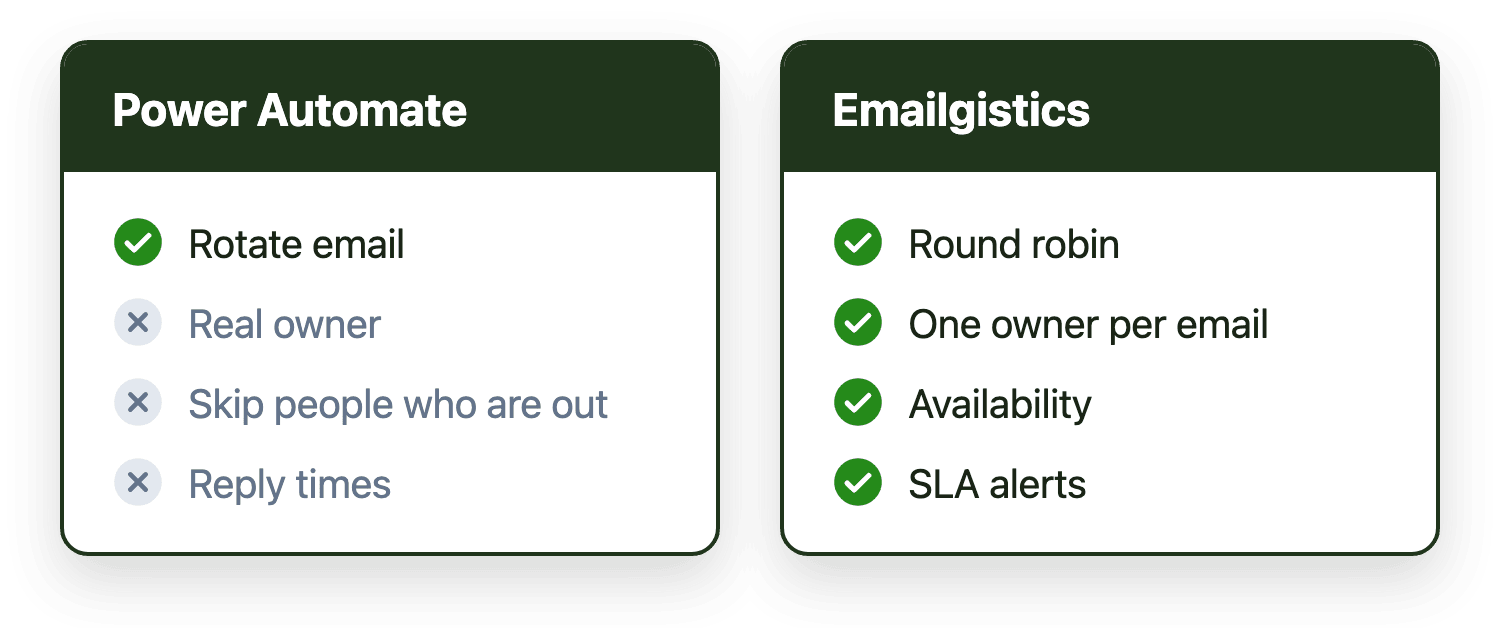
Yes, but you have to build it. Power Automate can trigger on new shared mailbox email and forward, move or categorize it in rotation, as long as you store the rotation somewhere like a SharePoint list. It can't give an email a real owner, skip people who are out, or report on response times.

Emailgistics Product Team 4 minute read Last updated

A Power Automate flow for shared mailbox round robin compared with automatic assignment in Emailgistics

Key takeaways

  • Power Automate can rotate shared mailbox email between people, but you build and maintain the round robin yourself.
  • Flow variables reset on every run, so the rotation has to be stored outside the flow, usually in a SharePoint list.
  • Without limiting the trigger to one run at a time, two emails arriving together can go to the same person.
  • A flow can forward, move or categorize an email, but Outlook has no assignment field, so there is no true owner or response-time tracking.
  • Emailgistics does round robin, load balancing and availability-aware assignment inside Outlook with no flows to maintain.
On this page

Yes, Power Automate can assign shared mailbox emails round robin, but only as a flow you build, store state for and maintain yourself. It can rotate new email between people by forwarding it, moving it to their folder or tagging it with a category. What it can't do is give the email a real owner, skip people who are away without extra work, or tell you how fast anyone replied. This guide shows how the flow works, where it breaks and when a dedicated tool is the simpler answer.

How a round robin flow works

A typical build has four parts:

  1. Trigger. The Office 365 Outlook connector's "When a new email arrives in a shared mailbox (V2)" trigger watches the shared mailbox, for example support@.
  2. State. A SharePoint list holds the team members in order and the position of the last person who received an email. Flow variables reset on every run, so the rotation can't live inside the flow.
  3. Pick and act. The flow reads the position, picks the next person, then forwards the email to them, moves it to a folder with their name or applies a category such as "Chris".
  4. Save. The flow writes the new position back to the list for the next email.

For a small team with steady volume, this works. The trouble starts with the details.

Where the flow breaks down

Two emails at once. Power Automate can run several copies of a flow at the same time. If two emails arrive together, both runs can read the same position and send both emails to the same person. The fix is to set the trigger's concurrency control to one run at a time, which also means a busy mailbox queues up behind a single run.

People who are out. The flow doesn't know who's on vacation, at lunch or at their limit. Skipping them means keeping an availability column up to date by hand or building another flow to do it.

No real owner. Outlook has no assignment field. A forwarded copy, a folder or a category tells the team who should act, but nothing stops two people replying, and nothing records who actually did.

No response times. A flow can route email but can't tell you how long customers waited, which messages are aging or whether you're meeting your targets.

Upkeep. Flows run under someone's connection. When that person changes role or leaves, or the team changes, someone has to update the flow and the list. Each new mailbox usually means another flow.

When Power Automate is enough

Power Automate is a good fit when:

  • One or two people work the mailbox and volume is low.
  • You only need to send certain senders or subjects to a fixed person.
  • You have someone who is comfortable building and maintaining flows.
  • Nobody needs response-time reporting or SLA alerts.

When a dedicated tool is simpler

Once several people share a mailbox and response times matter, the workarounds pile up. A shared mailbox tool does the same job without a flow:

Power Automate flowEmailgistics
Round robinYou build it, with state in SharePointBuilt in
Load balancing by current workloadYou build itBuilt in, with a per-person limit (Max Messages)
Skip people who are unavailableYou maintain an availability listOne-click availability for each user
One owner per emailNo, only a forward, folder or categoryYes, two people can't reply to the same email
Response-time targets and alertsNoReply and close targets by mailbox or tag, with alerts
ReportingNoReal-time dashboard and user and mailbox reports
Where the team worksOutlookOutlook

Emailgistics assigns each new email to one owner by round robin, load balancing or rules, keeps follow-ups with the person who handled the first message and works inside Outlook on the shared mailboxes you already have. Basic round robin and rules are included on every plan, from $11 per user per month. See Emailgistics vs Power Automate for a fuller comparison, or how load balancing works.

The bottom line

Power Automate can rotate email between people, and for a small, quiet mailbox that may be all you need. As soon as you need email to have a real owner, skip people who are out and show response times, you're rebuilding a shared inbox tool one flow at a time.


Emailgistics features in this post

Written by

Emailgistics Product Team

The people who design and build Emailgistics. They write about features, setup and how Emailgistics compares with other tools.

About Emailgistics

Emailgistics is the Outlook-native shared inbox for Microsoft 365. It gives every shared mailbox email one owner, automates routine work, tracks response times against your SLAs and reports on team performance, without leaving Outlook. Most teams are live in under an hour.

Get a Demo

Then try it free for 14 days. No credit card required.

Power Automate can act on new shared mailbox email with the Office 365 Outlook trigger 'When a new email arrives in a shared mailbox (V2)'. It can forward the email to a person, move it to their folder or apply a category with their name. Outlook has no assignment field, so this signals who should handle it but doesn't create an owner the team or a report can rely on.

Store the list of team members and the position of the last person assigned in a SharePoint list. In the flow, read the position, pick the next person, forward, move or categorize the email for them, then write the new position back. Set the trigger's concurrency control to one run at a time so two emails arriving together don't read the same position.

Not by default. To skip people who are away, you have to keep availability somewhere, such as a column in the SharePoint list, and update it by hand or with another flow. Otherwise the rotation keeps sending email to people who aren't there.

Usually not. The Office 365 Outlook and SharePoint connectors are standard connectors included with most Microsoft 365 business plans. Storing state in Dataverse or calling outside services can require a Power Automate Premium license.

A shared mailbox tool like Emailgistics assigns each new email to one owner by round robin, load balancing or rules, skips people marked unavailable, caps how many open emails each person holds and reports on response times, all inside Outlook. There is no flow to build or maintain.

Share this article

More from the blog

See all posts
  • Microsoft 365 Email Workflows

    How hard is it to roll out a shared inbox tool? Training, adoption and setup time

    Rollout effort depends on how much changes for the team. A help desk or standalone shared inbox app means a new interface, mailbox connections and retraining, often over weeks. An Outlook add-in keeps the team in the same shared mailboxes, so setup is an admin task and most teams are live in under an hour.

    4 minute read November 12, 2026

  • Shared Mailbox Management

    Shared mailboxes in Outlook and Microsoft 365: the complete guide

    A shared mailbox (often called a shared inbox) lets a team read and send email from one address, like support@ or info@, inside Outlook. This guide covers how to create one, set permissions, add it to every version of Outlook, fix common problems and know its limits.

    11 minute read October 21, 2026

  • Microsoft 365 Email Workflows

    When native Outlook shared mailboxes aren't enough: what IT should evaluate

    Native Outlook stops being enough when storage warnings, unexplained permission lists and unanswerable ownership questions pile up. IT should then check that a tool fits the M365 identity model, keeps data in the tenant and can be piloted.

    6 minute read August 28, 2026