


Step-by-Step Instructions
- Go to admin.microsoft.com
- Go to Settings → Integrated apps
- Select Upload custom apps
Do not select "Get apps" or "Store apps".
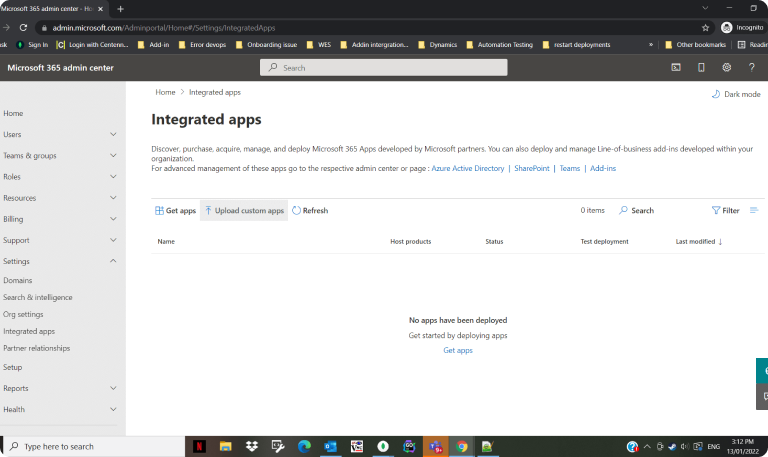
- When prompted for App type, select Office add-in
- Choose Provide a link to the manifest file
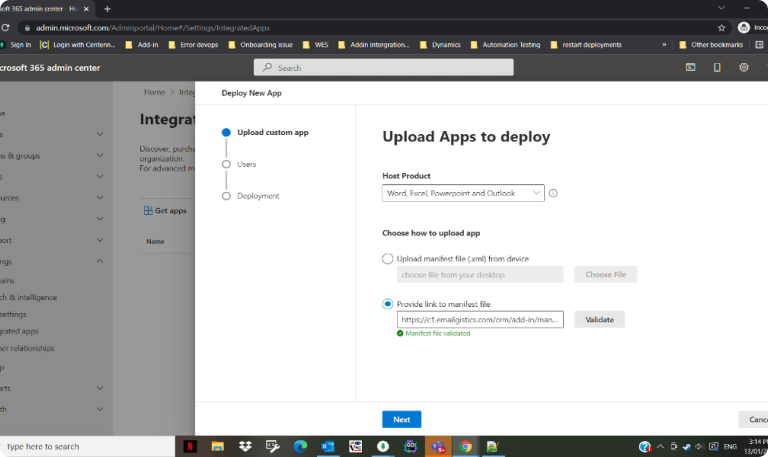
- Paste the manifest URL: https://c1.emailgistics.com/crm/addin/v3/manifest
- Select Validate
- Choose the users or groups that should receive the add-in
- Recommended: a security group or all users who access shared mailboxes
- Also include the shared mailbox itself if users access it through Outlook on the web (OWA) or the new Outlook
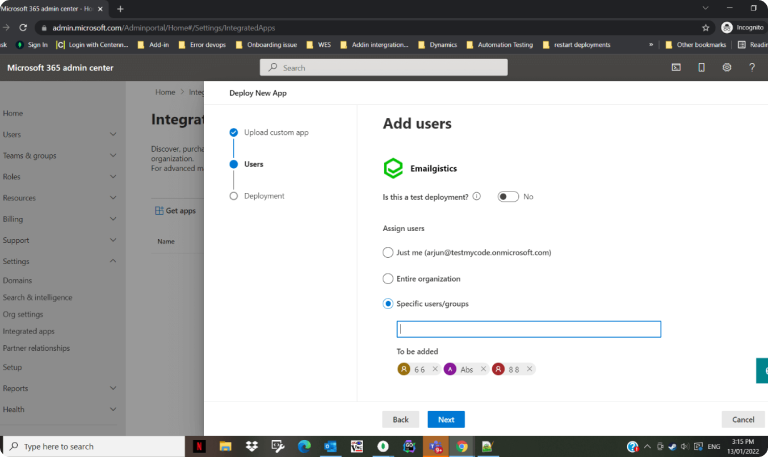
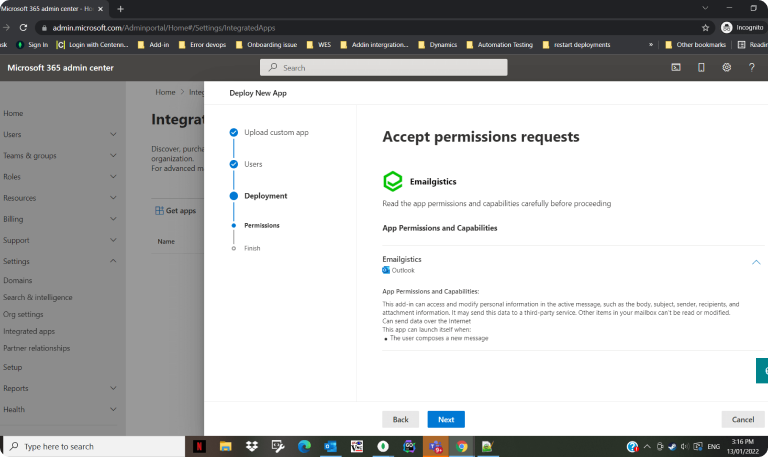
- Review and Accept permissions
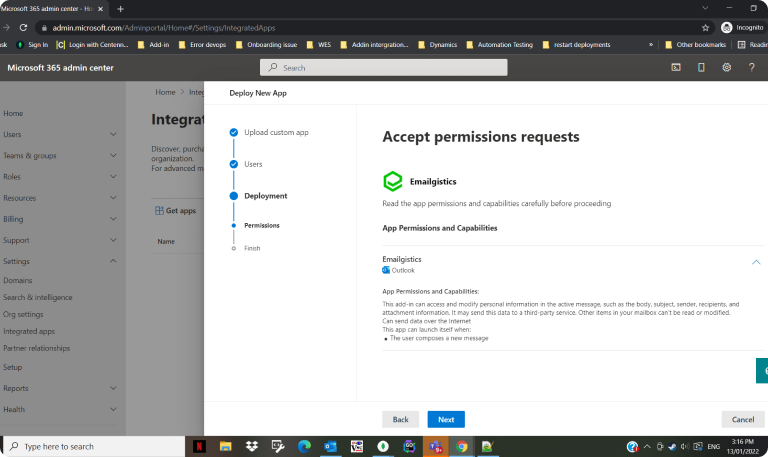
- Select Finish deployment
What to Expect After Deployment
After completing deployment, Microsoft will begin distributing the add-in to the selected users and mailboxes.
- The add-in may not appear immediately
- Deployment can take up to 72 hours to complete
- Users may see the add-in at different times during this window
- Seeing different behavior across users during deployment is normal
This timing is controlled by Microsoft and is expected behavior.
Best Practices
- Use security groups instead of selecting individual users — this makes it easier to manage access over time.
- Include shared mailboxes when required — for OWA and the new Outlook, shared mailboxes that are added as accounts must be included in the deployment scope.
- Allow time before troubleshooting — wait the full deployment window before assuming there is an issue.
Adding the Add-in for New Users
If new users are added after the initial deployment, either add them to the same security group used during deployment, or update the deployment scope in Integrated Apps to include the new users. Microsoft will automatically deploy the add-in to newly added users, though the same deployment timing applies.
Adding the Add-in for New Shared Mailboxes
If new shared mailboxes are created, include the mailbox in the deployment scope if:
- Users access it through Outlook on the web (OWA), or
- The mailbox is added as an account in the new Outlook
When to Contact Support
Contact [email protected] if:
- The add-in does not appear after 72 hours
- You are unsure whether users or mailboxes are included in the deployment
- You need help adjusting deployment scope for new users or mailboxes