


Outlook shared mailbox management: Native Outlook vs Outlook + Emailgistics
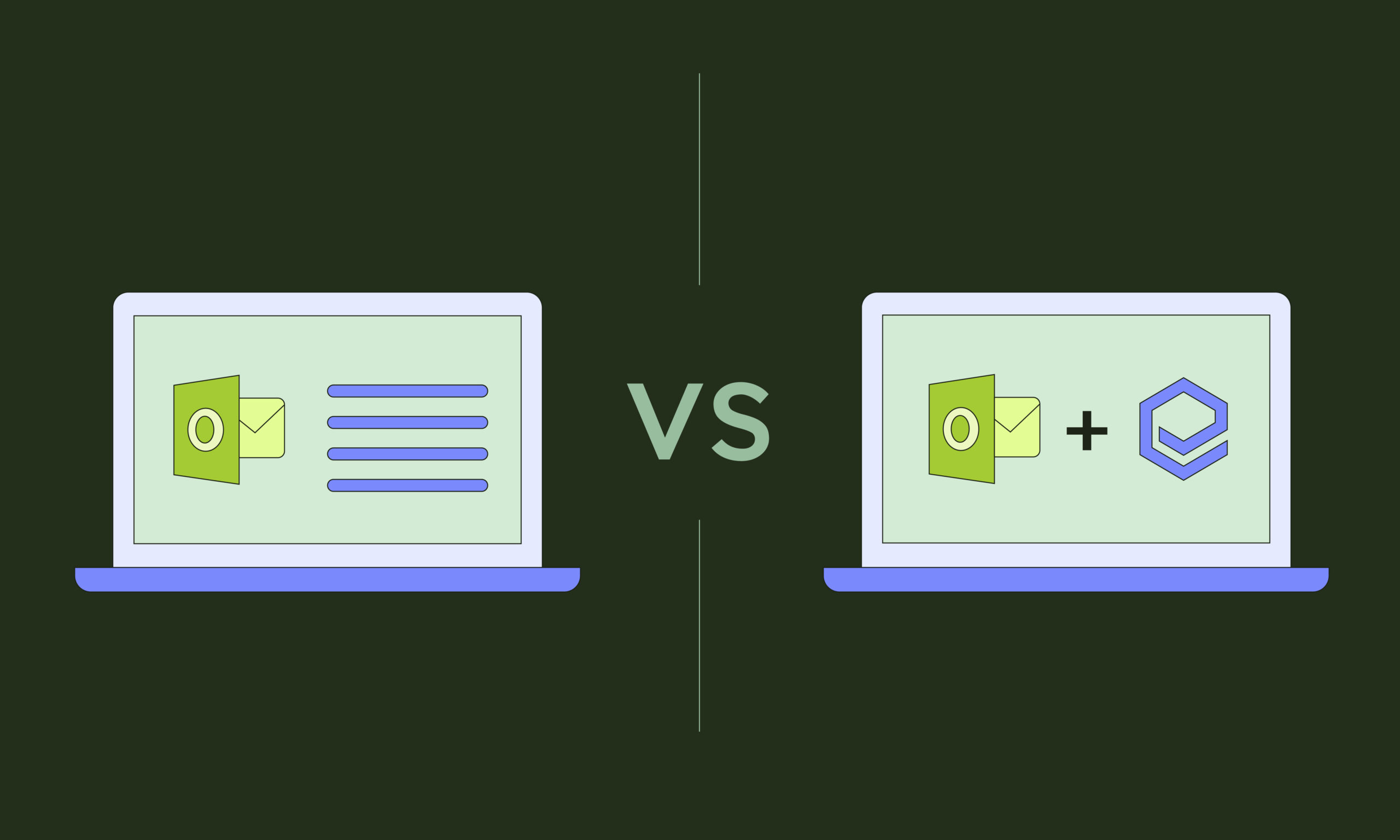
Native Outlook shared mailboxes let a team view and send from one inbox, but nothing assigns messages, tracks SLAs, or reports on performance without manual upkeep. Adding Emailgistics keeps that same Outlook inbox while introducing automatic round-robin or load-balanced assignment, rule-based routing, configurable SLA alerts, linked conversation history, and live dashboards, so managers get visibility Outlook alone can't provide.
Managing shared mailboxes in Outlook
If you’re a small team managing a shared mailbox in Outlook you can usually get by using built-in tools and workarounds — adding initials to subject lines to show ownership, replying internally with “I’ll take this,” or manually moving emails into personal folders. But as volume increases, those manual systems become harder to maintain.
Outlook’s shared mailbox lets your team see and send from the same inbox, but it can’t assign messages, balance workloads, or warn you before an SLA breach. Reporting is also limited — beyond what you can see in Sent Items or a custom Power BI build, Outlook offers no built-in analytics.
For a plain-English rundown of each gap and its fix, see Outlook shared mailbox limitations (and how to fix them).
In this post, you’ll see a side-by-side comparison of managing a shared mailbox in Outlook alone versus Outlook with Emailgistics, including:
- Assignments and email ownership
- Rules and automation
- SLA tracking and alerts
- Conversation continuity and history
- Reporting and analytics
- Staying in the Outlook environment
Assignments and email ownership
With Outlook alone
In a busy shared Outlook mailbox, assigning emails depends on manual workarounds: dragging messages into folders, tagging them with color categories, or adding Follow Up flags as reminders. These methods require constant attention, as Outlook has no built-in “assign to user” feature.
For example, you can assign emails using color categories, but it still requires active monitoring. Even with Outlook Rules, it doesn’t establish true ownership — and with a 25 color limit per mailbox, larger teams quickly outgrow the system.
With Outlook and Emailgistics
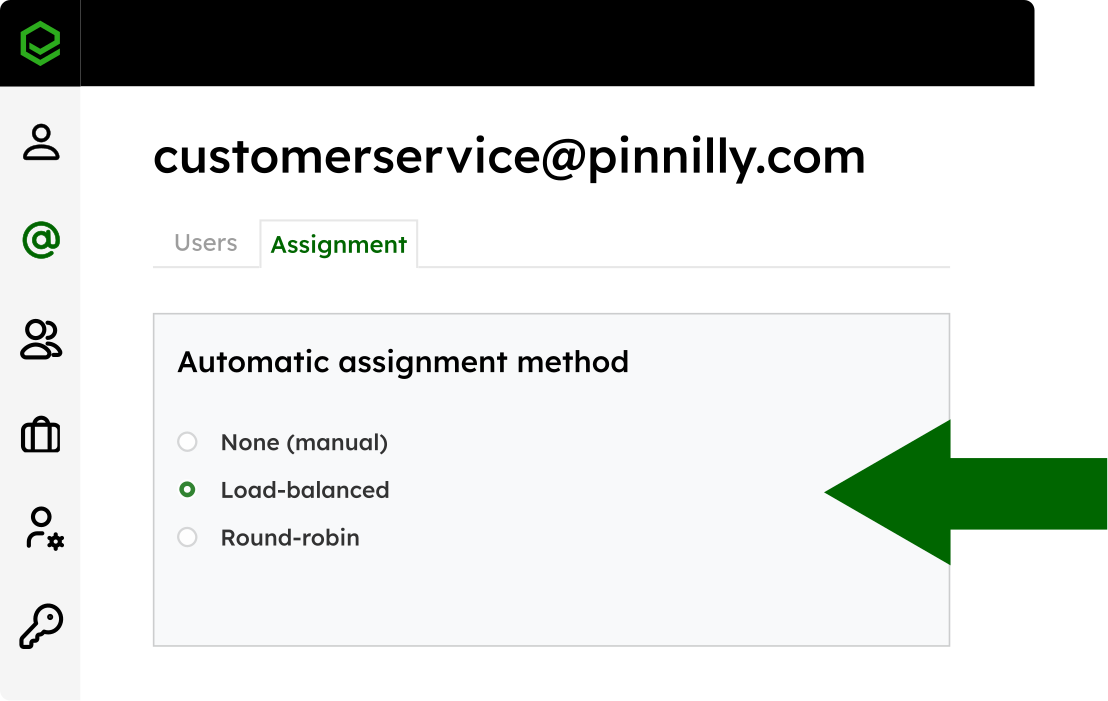
Emailgistics assigns incoming messages to a specific agent automatically, using either a round-robin or load-balanced method. The round-robin method distributes new emails evenly among all eligible users in order of their user ID creation date, while the load-balanced method assigns them to the team member with the fewest active messages.
If your team’s workload is relatively consistent, round-robin is a good fit. If it fluctuates — such as during seasonal peaks — the load-balanced option helps maintain efficiency. Either way, every email has a clearly defined owner, reducing the risk of missed or duplicate replies.
Assignment also accounts for who's actually available: user schedules and backup assignees let Emailgistics automatically reassign work when someone is out of office, so coverage doesn't depend on manual handoffs.
Rules and automation
With Outlook alone
Outlook lets you create rules to move or tag messages to folders, but Outlook Rules are basic and require maintenance. They can’t decide who should handle an email or deliver it to an individual’s mailbox.
For example, you might create a rule that moves anything with “support” in the subject line to a shared Customer Service folder. From there, someone still has to open that folder and manually pick up a message.
Rules can’t balance workloads, enforce ownership, or pause distribution when someone’s out of office, leaving managers to constantly monitor and redistribute work.
With Outlook and Emailgistics
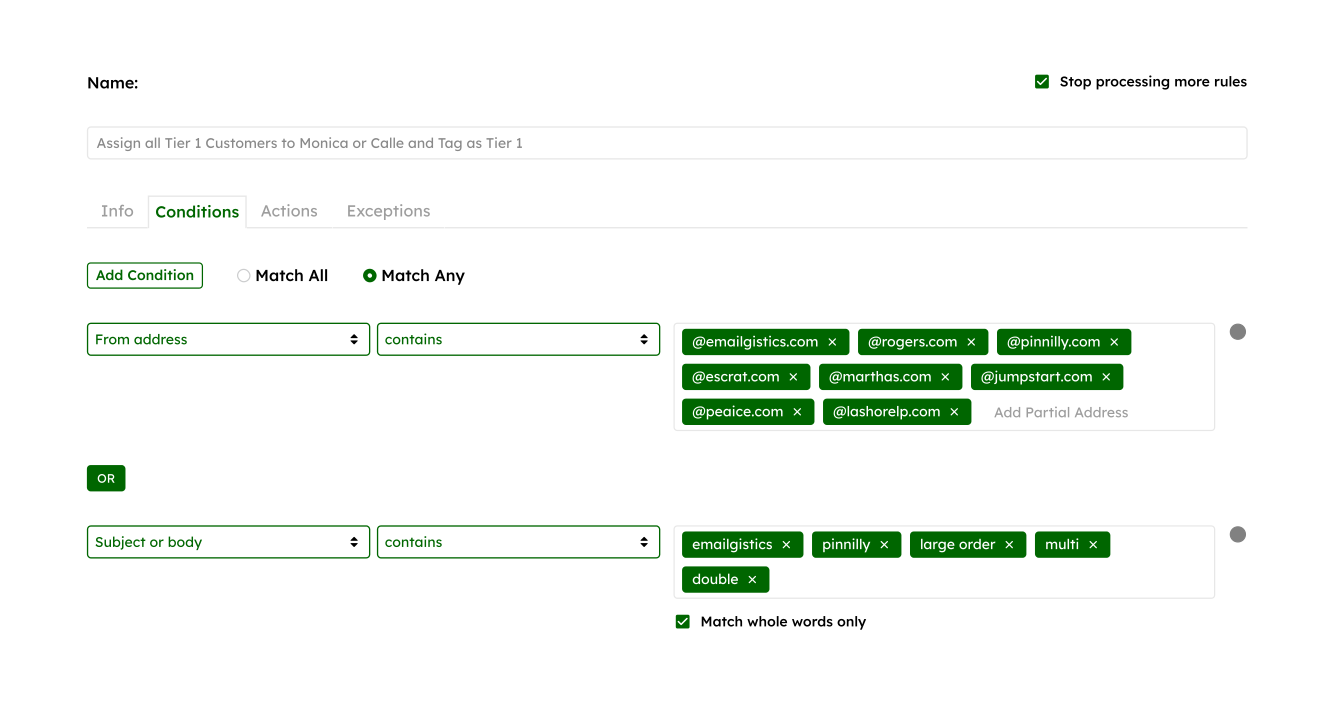
Emailgistics expands Outlook’s rules into a fully automated routing system. You can build rules to automatically route messages to specific users or teams based on criteria such as sender address, domain, subject keywords, or message content. Examples include:
- Route emails containing “claim” or “incident” to your Claims group.
- Assign emails from a client email domain directly to a specific account manager.
- Tag incoming emails with custom labels or categories for easier tracking.
- Trigger an automatic reply acknowledging receipt during weekends or peak hours.
- Automatically archive messages once they’re resolved or meet specific criteria.
Each rule follows a hierarchy of configurable conditions and exceptions, so messages route intelligently without manual sorting or supervision.
Combined with Emailgistics’ round-robin or load-balanced assignment methods, these routing automations make sure every email lands in the right hands.
SLA tracking and alerts
With Outlook alone
Outlook has no SLA tracking or timers. In practice, teams sort the mailbox by “Received” time, flag messages manually, or check Sent Items to confirm whether someone replied.
Managers often keep separate spreadsheets or message their teams in Teams or Slack to see what’s still waiting, then manually reassign older emails as they start to pile up.
With Outlook and Emailgistics
Emailgistics lets you define reply- and close-time SLA targets per mailbox and visualize compliance in real time. Dashboard gauges display live metricssuch as Inside Reply SLA and Inside Close SLA — showing the percentage of messages within your defined response and resolution thresholds, so you can instantly see where your team stands against targets.
You can also set alerts — for example, notify supervisors when a message waits too long without a reply — enabling proactive reassignment before a breach. During busy periods, you can trigger automatic “expectation” replies (“We’ll need a bit longer today”) to maintain transparency with customers.
Conversation continuity and history
With Outlook alone
In a shared Outlook mailbox, context often gets lost in scattered CC chains, forwarded threads, or people’s memories. Outlook doesn’t link related messages as a single “case,” so when a customer replies days later or changes the subject line, it often shows up as a brand-new email.
Without a built-in place for internal notes, you might find yourself forwarding messages to teammates or relying on verbal updates, leading to confusion when multiple people handle the same conversation.
With Outlook and Emailgistics
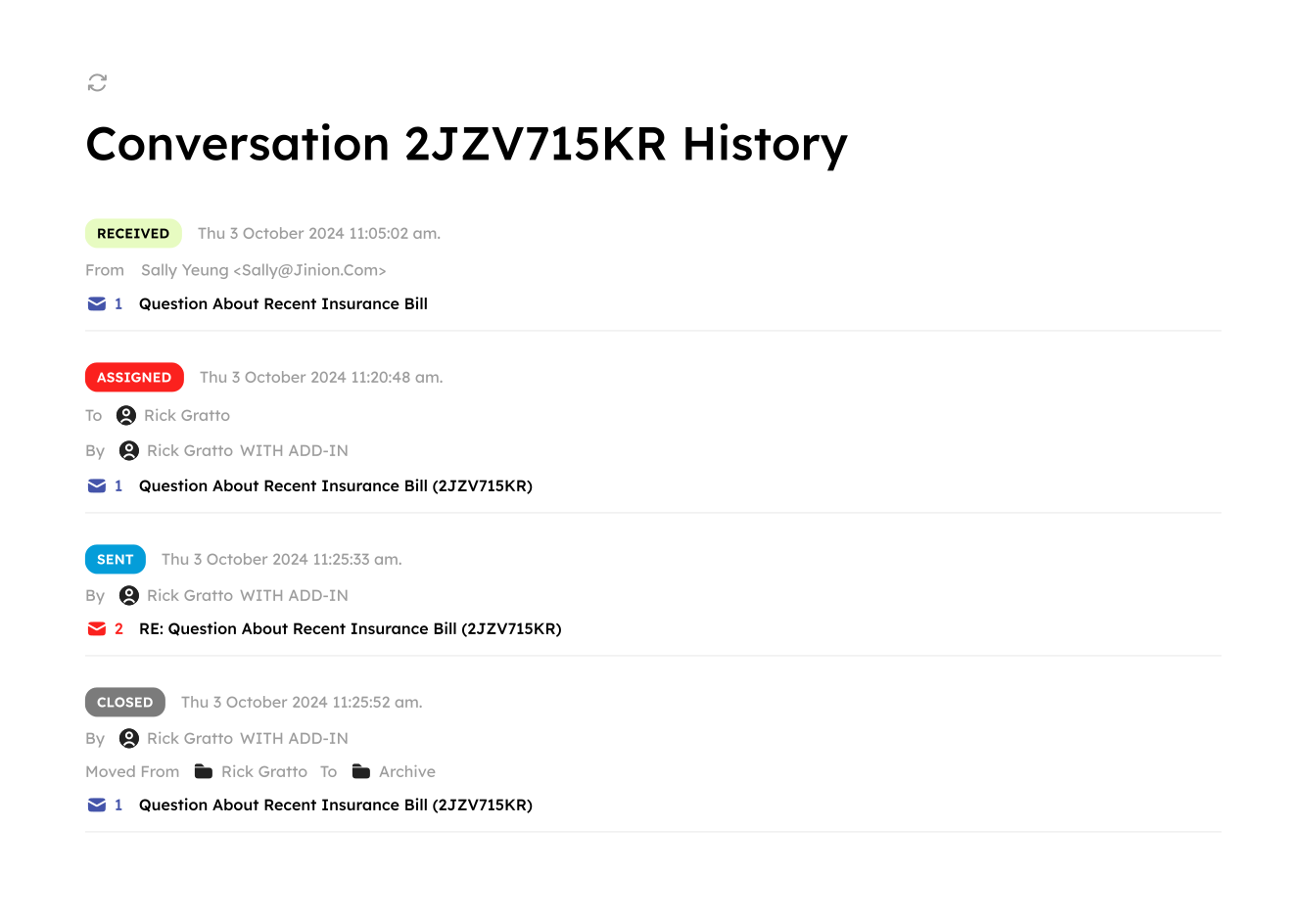
Every conversation in Emailgistics gets a unique Conversation ID — a permanent identifier that follows the thread from the first message until it’s closed. Even if a customer replies weeks later or changes the subject line, that reply is automatically linked back to the original conversation, keeping the full history together.
Each thread also supports internal notes, so your team can leave private comments or handoff instructions directly within the conversation. When ownership changes, those notes and the entire message history stay attached.
Managers can audit or review any exchange end-to-end by Conversation ID, seeing exactly who owned it, when it was reassigned, and how it was resolved. Every message stays connected, and every handoff stays accountable.
Reporting and analytics
With Outlook alone
Outlook doesn’t provide team-level reporting on shared mailbox performance. You can see unread counts or scan folders, but you can’t answer questions like “How many emails are still unassigned?”, “What’s our average reply time today?”, or “Who’s falling behind?”
Without a custom Power BI setup, reporting relies on spot checks — such as opening the mailbox, sorting by received time, and making educated guesses about performance.
With Outlook and Emailgistics
Emailgistics provides both real-time dashboards and historical performance reports for complete visibility. Dashboards refresh every minute and surface at-a-glance metrics like unassigned messages, open items, oldest message age, SLA compliance, and average reply times by user or mailbox.
For deeper analysis, performance reports track metrics like initial reply time, close time, and SLA compliance over any selected date range. Bucketed reports group responses into time intervals to help identify trends, and all data can be exported to Excel for further analysis.
Staying in the Outlook environment
With Outlook alone
Due to the limitations in managing shared mailboxes in Outlook, teams may eventually turn to ticketing or helpdesk tools for structure.
The problem is that those platforms often require learning new workflows, switching interfaces, and changing how your team communicates with customers — something that can slow adoption and frustrate users who prefer to stay in Outlook.
With Outlook and Emailgistics
Emailgistics works directly inside Outlook as a Microsoft 365 add-in, so your team continues working in the same mailbox they already know. There are no new logins or external systems — everything happens inside Outlook’s familiar interface to minimize training time.
Behind the scenes, Emailgistics follows Microsoft’s highest security and compliance standards. All data stays within Microsoft’s cloud. The platform is SOC 2 Type II-certified and fully compliant with GDPR and HIPAA. Your workflow improves, but everything remains protected within your Microsoft 365 environment.
Native Outlook vs. Outlook with Emailgistics: At-a-glance comparison
| Capability | Just Outlook | Outlook + Emailgistics |
|---|---|---|
| Assignments & ownership | Manual tagging, drag emails to folders | Auto-assign (round robin or load-based) |
| Routing & rules | Basic rules, route only to group folders | Smart rules, team and individual routing |
| SLA tracking | No SLA tracking capability | Configurable and trackable SLA reply and close times |
| Alerts & notifications | No alerting capability | Real-time alerts based on user-defined thresholds |
| Reporting & analytics | No team-level visibility | Live dashboards with historical data |
| Conversation continuity | No built-in handoff to teammates | Linked threads with full conversation history |
| Internal notes | Not supported | Notes stay within each email thread |
| Adoption & usability | Outlook environment without workflow tools | Same Outlook interface, enhanced team workflow |
If your shared mailbox already lives in Outlook, replacing it isn’t necessary. Adding Emailgistics simply builds on Outlook’s capabilities — giving you the structure, visibility, and automation Outlook alone doesn’t provide.
Want to see how Emailgistics can help your team stay on top of every request and ahead of every deadline? Book a demo today and try Emailgistics free for 14 days.
Outlook limits each mailbox to 25 color categories, which becomes a hard ceiling once a team grows past that many people or ownership labels. Categories also require someone to apply and monitor them manually, so they don't establish real ownership the way an assignment feature does. Larger teams typically outgrow this system as their shared mailbox volume increases.
Round-robin distributes new emails evenly among eligible users in order of their user ID creation date, which works well when workload stays fairly consistent. Load-balanced assignment instead routes each new message to whichever team member currently has the fewest active messages, which helps during seasonal peaks or uneven volume. Either method gives every email a clear, defined owner.
Yes. Emailgistics assigns every conversation a permanent Conversation ID that stays attached even if a customer replies weeks later or changes the subject line. The reply is automatically linked back to the original thread, so the full history, internal notes, and ownership record remain together. This prevents the same case from reappearing as a disconnected new email.
Not on their own. Outlook Rules can move or tag messages, such as sending anything with 'support' in the subject to a shared folder, but someone still has to open that folder and pick up the message manually. Emailgistics builds on top of Rules with routing based on sender, domain, keywords, or content, paired with automatic assignment so messages reach an individual or team without manual sorting.
Related posts
- Shared mailboxes in Outlook and Microsoft 365: the complete guide
- How to convert a distribution list to a shared mailbox
- Shared inbox management for non-profits: what to prioritize on a lean budget
- Best practices for managing high-volume shared mailboxes
- Common shared mailbox mistakes (and how to fix them)